How to test a login page in 30 minutes is an important question for every QA Engineer working under tight deadlines. Imagine your manager asks you to test a login page before a release, but you have only 30 minutes. How would you identify the most critical bugs and decide what to test first?
- What Is Login Page Testing?
- How to Test a Login Page in 30 Minutes: Step-by-Step Guide
- Step 1: Understand the Requirements (First 3 Minutes)
- Step 2: Prioritize the Most Important Test Cases (Next 2 Minutes)
- Step 3: Test the Happy Path (Minutes 5–10)
- Test Case 1: Login With Valid Credentials
- Test Case 2: Verify the Login Session
- Test Case 3: Verify Logout
- Step 4: Test Negative Scenarios (Minutes 10–17)
- Test Case 4: Incorrect Password
- Test Case 5: Unregistered Email Address
- Test Case 6: Both Fields Empty
- Test Case 7: Only Email Entered
- Test Case 8: Only Password Entered
- Test Case 9: Password Visibility
- Step 5: Perform Essential Security Checks (Minutes 17–22)
- 1. Check SQL Injection Handling
- 2. Check Multiple Failed Attempts
- 3. Check Direct URL Access
- 4. Check Error Messages
- Step 6: Check Forgot Password and Basic UI (Minutes 22–26)
- Step 7: Report Results and Risks (Final 4 Minutes)
- Complete 30-Minute Login Testing Plan
- How Would You Answer This Question in a QA Interview?
- Common Mistakes to Avoid
- Can You Automate These Login Tests?
- Frequently Asked Questions (FAQs)
- 1. Can we test a login page completely in 30 minutes?
- 2. Which login test case should be executed first?
- 3. What is the difference between positive and negative login testing?
- 4. Should security testing be included in login page testing?
- 5. How can a QA Engineer decide what to test first?
- 6. Is this a common manual testing interview question?
- Other Internal Links:
In this guide, we will explore practical login page test cases, risk-based testing techniques, essential security checks, and interview tips to help you test efficiently.
Imagine you are a QA Engineer, and your manager gives you a task:
“We have only 30 minutes before the release. Please test the login page and tell me if it is ready.”
What would you do?
Would you start clicking every button and testing every possible scenario? Or would you focus on the most important test cases first?
As a QA Engineer, you may not always have enough time to test everything. Sometimes, you need to work under tight deadlines and make smart decisions about what to test first.
In this situation, your goal is not to test everything. Your goal is to identify the most critical issues that could affect users and prevent them from logging in.
In this blog, we will learn how to test a login page in just 30 minutes, which test cases to prioritize, and how to explain your testing approach during a QA interview.
What Is Login Page Testing?
Login page testing is the process of checking whether users can log in to an application securely and correctly.
A typical login page contains:
- Username or email field
- Password field
- Login button
- Forgot Password link
- Remember Me checkbox, if available
Depending on the application, it may also include CAPTCHA, multi-factor authentication (MFA), or single sign-on (SSO).
As a tester, you need to verify that valid users can log in, invalid users receive appropriate error messages, and unauthorized users cannot access protected pages.
How to Test a Login Page in 30 Minutes: Step-by-Step Guide
Step 1: Understand the Requirements (First 3 Minutes)
Before starting the testing, quickly understand how the login functionality is expected to work.
Ask yourself these questions:
- Can users log in using an email address, username, or both?
- What should happen when the password is incorrect?
- Are empty fields allowed?
- Is the account locked after multiple failed attempts?
- Is two-factor authentication required?
- What should happen after a successful login?
You may not have time to discuss every requirement with the team. In that case, check the available requirements, acceptance criteria, or existing application behavior.
QA Tip: Never assume how a feature should work when you can quickly confirm the expected behavior.
Step 2: Prioritize the Most Important Test Cases (Next 2 Minutes)
With only 30 minutes available, you cannot test every possible combination.
Use risk-based testing to identify which scenarios deserve attention first.
Here is a simple priority list:
| Priority | What to Test | Why It Matters |
|---|---|---|
| P1 – Critical | Login with valid credentials | Users must be able to access the application |
| P1 – Critical | Login with an incorrect password | Unauthorized access must be prevented |
| P1 – Critical | Empty username and password | Required field validation must work |
| P1 – Critical | Direct access to a protected page without logging in | Sensitive pages must remain protected |
| P2 – High | Forgot Password functionality | Users need a way to recover access |
| P2 – High | Multiple failed login attempts | Security controls must work as expected |
| P2 – High | Password masking | Passwords should not be exposed visually |
| P3 – Additional | UI alignment and minor visual issues | The page should provide a good user experience |
The exact priority depends on the application, its security requirements, and the release risks.
For example, if the application handles banking or personal information, security-related scenarios may need even higher priority.
Step 3: Test the Happy Path (Minutes 5–10)
The happy path means testing the feature under normal, expected conditions.
Test Case 1: Login With Valid Credentials
Steps:
- Open the login page.
- Enter a registered email address.
- Enter the correct password.
- Click the Login button.
Expected Result:
The user should log in successfully and be redirected to the appropriate page.
Test Case 2: Verify the Login Session
After logging in, refresh the page or navigate to another protected page.
Expected Result:
The application should maintain the session according to its requirements. Protected pages should not unexpectedly become accessible to logged-out users.
Test Case 3: Verify Logout
If time permits, log out and try opening the protected page again.
Expected Result:
The user should be logged out, and protected content should no longer be accessible through the old session.
Why test this first?
If a valid user cannot log in or a logged-out user can still access protected content, the issue could have a major impact on the release.
Step 4: Test Negative Scenarios (Minutes 10–17)
Negative testing checks how the application behaves when users enter incorrect or incomplete information.
Focus on these important scenarios.
Test Case 4: Incorrect Password
Steps:
- Enter a registered email address.
- Enter an incorrect password.
- Click Login.
Expected Result:
The application should reject the login attempt and display an appropriate error message.
Test Case 5: Unregistered Email Address
Enter an email address that is not registered and submit the form.
OWASP Authentication Cheat Sheet
Expected Result:
The user should not be logged in. The error message should follow the application’s security and usability requirements.
Test Case 6: Both Fields Empty
Leave the email and password fields empty, then click Login.
Expected Result:
The application should show the required field validation messages or another clearly defined validation response.
Test Case 7: Only Email Entered
Enter a valid email address but leave the password field empty.
Expected Result:
The application should request the missing password and should not log the user in.
Test Case 8: Only Password Entered
Leave the email field empty and enter a password.
Expected Result:
The application should request the missing email or username.
Test Case 9: Password Visibility
Check whether the password is hidden by default. If a show/hide password option exists, test whether it works correctly.
Expected Result:
The password should remain masked unless the user intentionally chooses to reveal it.
Step 5: Perform Essential Security Checks (Minutes 17–22)
A login page is not just a form. It is also a security boundary.
Even with limited time, perform a few high-value security checks.
1. Check SQL Injection Handling
Try a harmless, non-destructive input such as a single quote in the username or email field.
Expected Result:
The application should handle the input safely, return an appropriate response, and never expose database errors or allow unauthorized access.
A single input check cannot prove that the application is protected against SQL injection. Proper security testing requires more comprehensive validation.
2. Check Multiple Failed Attempts
Enter an incorrect password several times using a test account.
Expected Result:
The application should follow its defined security policy, such as rate limiting, temporary delays, or account protection.
Do not assume every application must lock accounts after a fixed number of attempts. Verify the actual security requirements.
3. Check Direct URL Access
Log out and try to open a protected URL directly in the browser.
Expected Result:
The application should deny unauthorized access or redirect the user to the login page.
4. Check Error Messages
Try different invalid login combinations.
Expected Result:
Error messages should be useful without unnecessarily revealing whether a particular account exists. This is especially important for applications with sensitive user data.
Step 6: Check Forgot Password and Basic UI (Minutes 22–26)
If the core login scenarios are working, spend the next few minutes checking additional functionality.
Forgot Password
- Click the Forgot Password link.
- Verify that the correct page opens.
- Enter a registered email address using a test account.
- Check whether the application displays the expected confirmation message.
If the recovery process requires an email or OTP, verify the relevant step only if time and the test environment permit.
Basic UI Checks
Quickly verify the following:
- Login button is visible and clickable.
- Email and password fields are properly aligned.
- Labels and error messages are readable.
- The password field masks the entered value.
- The page works at the target browser or screen size.
Avoid spending too much time on minor spacing issues while critical functionality remains untested.
Step 7: Report Results and Risks (Final 4 Minutes)
Testing is not complete until you communicate the results.
Use the final few minutes to record the test cases executed, issues found, and remaining risks.
For example:
Login Page Testing Summary
- Total time spent: 30 minutes
- Valid login: Passed
- Invalid password: Passed
- Empty field validation: Passed
- Protected page access after logout: Passed
- Forgot Password: Not tested
- Multiple failed login attempts: Not tested
Release Recommendation:
Based on the checks performed, the core login scenarios passed. However, Forgot Password and multiple failed login attempts were not tested. These areas remain unverified and should be assessed according to the application’s risk and release requirements.
Never mark an untested scenario as passed.
If you find a critical defect, report it immediately rather than waiting until the end of the 30-minute window.
Complete 30-Minute Login Testing Plan
Here is a quick reference you can use during real projects or QA interviews.
| Time | Activity |
|---|---|
| 0–3 minutes | Understand requirements |
| 3–5 minutes | Identify high-risk scenarios |
| 5–10 minutes | Test valid login, session, and logout |
| 10–17 minutes | Test invalid credentials and empty fields |
| 17–22 minutes | Perform essential security checks |
| 22–26 minutes | Check Forgot Password and basic UI |
| 26–30 minutes | Record results and report risks |
This schedule is a guide, not a fixed rule. If you discover a critical defect, you may need to adjust the plan and investigate it further.
How Would You Answer This Question in a QA Interview?
Interview Question: How would you test a login page if you had only 30 minutes?
Sample Answer:
“If I had only 30 minutes to test a login page, I would follow a risk-based testing approach.
First, I would spend a few minutes understanding the requirements and identifying the most critical scenarios.
I would start with valid login, invalid password, empty field validation, and session behavior. Next, I would check essential security scenarios, such as unauthorized access to protected pages and handling of repeated failed login attempts.
If time permitted, I would test Forgot Password functionality, password masking, and basic UI behavior.
Finally, I would document the test results, report any critical defects, and clearly communicate which scenarios were not tested.
My priority would be to identify high-impact issues first rather than trying to execute every possible test case within 30 minutes.”
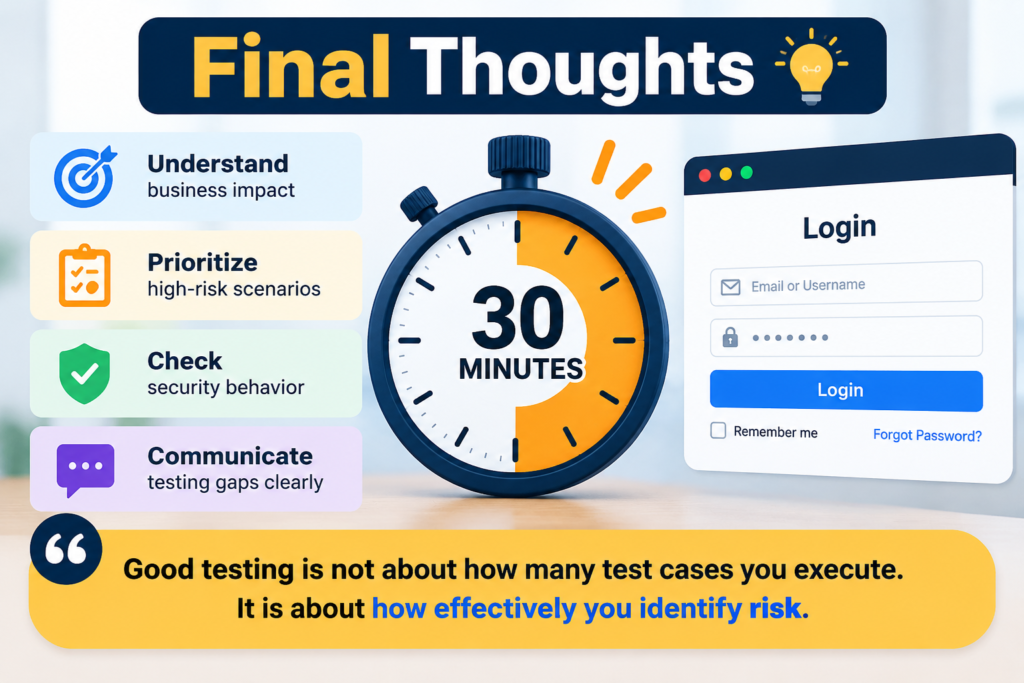
This answer demonstrates prioritization, risk awareness, security thinking, and clear communication.
Common Mistakes to Avoid
When testing under time pressure, avoid these mistakes:
1. Testing randomly
Without a plan, you may spend too much time on low-priority scenarios.
2. Focusing only on the UI
A login button can look perfect while authentication is broken.
3. Ignoring security
Authentication and authorization failures can expose sensitive information.
4. Marking untested cases as passed
Always distinguish between passed, failed, blocked, and not tested.
5. Forgetting to communicate risks
The development team and release manager need to understand what was tested and what remains unverified.
Can You Automate These Login Tests?
Yes! Once the important scenarios are identified, you can automate repeatable login tests using tools such as Playwright, Selenium, or Cypress.
Playwright testing documentation
For example, Playwright can automate:
- Login with valid credentials
- Login with an incorrect password
- Required field validation
- Password visibility behavior
- Redirects after login and logout
- Access restrictions for protected pages
However, automation does not replace good test planning. You must first understand the expected behavior and identify the highest-risk scenarios.
Frequently Asked Questions (FAQs)
1. Can we test a login page completely in 30 minutes?
Usually, no. A complete login test may require more time, depending on the application’s complexity. Thirty minutes is enough for a focused, risk-based smoke test of the most important scenarios.
2. Which login test case should be executed first?
Start with successful login using valid credentials because it verifies the application’s primary authentication flow. Then test invalid credentials, required fields, and protected page access.
3. What is the difference between positive and negative login testing?
Positive testing checks whether valid credentials allow a user to log in. Negative testing checks whether invalid or incomplete inputs are handled correctly and unauthorized users are prevented from accessing the application.
4. Should security testing be included in login page testing?
Yes. Login functionality protects user accounts and application data. Even during a short test session, prioritize essential checks such as unauthorized access, safe error handling, and the application’s failed-login protections.
5. How can a QA Engineer decide what to test first?
Consider the business impact, likelihood of failure, security risks, frequency of use, and consequences of a defect. Test the highest-risk scenarios first.
6. Is this a common manual testing interview question?
Time-limited testing questions are useful for evaluating a candidate’s prioritization, practical judgment, risk-based thinking, and ability to communicate under pressure.
What would you test first if you had only 30 minutes to test a login page?
Share your answer in the comments and compare your approach with other QA Engineers.
Other Internal Links:
- 7 Powerful AI Tools for QA Engineers in 2026
- API Testing Scenarios for Beginners: 10 Common Mistakes to Avoid
- Playwright Fixtures: Amazing Guide for Beginners (2026)
- How to Test an AI Agent: 7 Powerful Tips
- AI Testing Interview Questions: 25 Essential Answers to Ace Your QA Interview
- How to Test AI-Generated Responses: 7 Powerful QA Tips
- Page Object Model in Playwright: 7 Things You Should Know
- API Testing for Manual Testers: 7 Easy Steps to Master API Testing
- 20 Amazing SQL Queries Every QA Engineer Should Know
- AI for QA Engineers: 5 Powerful Ways to Use AI