What Happens When You Type a Website Address in Your Browser?
Have you ever wondered what actually happens when you type a website address like google.com into your browser and press Enter?
Within a few moments, the website appears on your screen. It feels almost instant.
But computers don’t really understand names like google.com the same way we do. They communicate using IP addresses.
So, how does your browser find the right server?
The answer is DNS — Domain Name System.
You can think of DNS as the address book of the internet. It takes a human-friendly domain name and helps your device find the IP address of the server where that website is hosted.
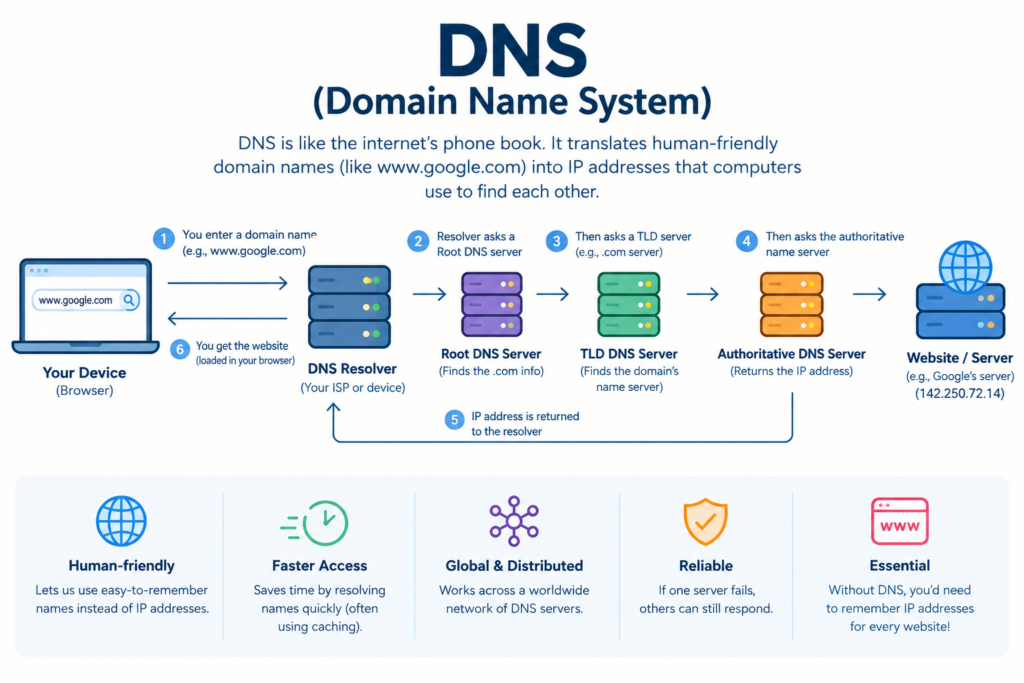
What is DNS?
DNS stands for Domain Name System.
DNS server translates human-readable website names like
www.example.com
into an IP addresses that computers use to identify each other on a network such as:
93.184.216.34
An IP address tells computers where to find a particular server or device on a network.
Imagine having to remember an IP address every time you wanted to visit a website.
Instead of remembering:
142.250.x.x
you can simply type:
google.com
That’s where DNS makes our lives much easier.
It acts like a translator between humans and computers.
A Simple Real-Life Example
Think about your phone’s contact list.
You don’t normally remember your friend’s phone number. Instead, you save it as:
Rahul
When you want to call Rahul, you select his name and your phone finds the associated number.
DNS works in a similar way.
Domain name → IP address
For example:
google.com → Google’s server IP address
Your browser can then use that address to communicate with the appropriate server.
This is why DNS is often compared to a phonebook or address book for the internet.
Why Do We Need DNS?
Computers are perfectly comfortable working with IP addresses.
Humans aren’t.
Imagine if you had to remember a different numerical address for every website you visited.
You might have to remember something like:
- Website A →
192.0.2.10 - Website B →
203.0.113.25 - Website C →
198.51.100.40
That would become frustrating very quickly.
DNS allows us to use meaningful names instead.
For example:
You remember:
youtube.com
DNS helps your device discover:
the IP address associated with youtube.com
The browser can then connect to the destination.
What Happens When You Type a Website Address?
This is where DNS becomes interesting.
Suppose you open your browser and type:
www.example.com
and press Enter.
Several things happen behind the scenes.
Let’s walk through them.
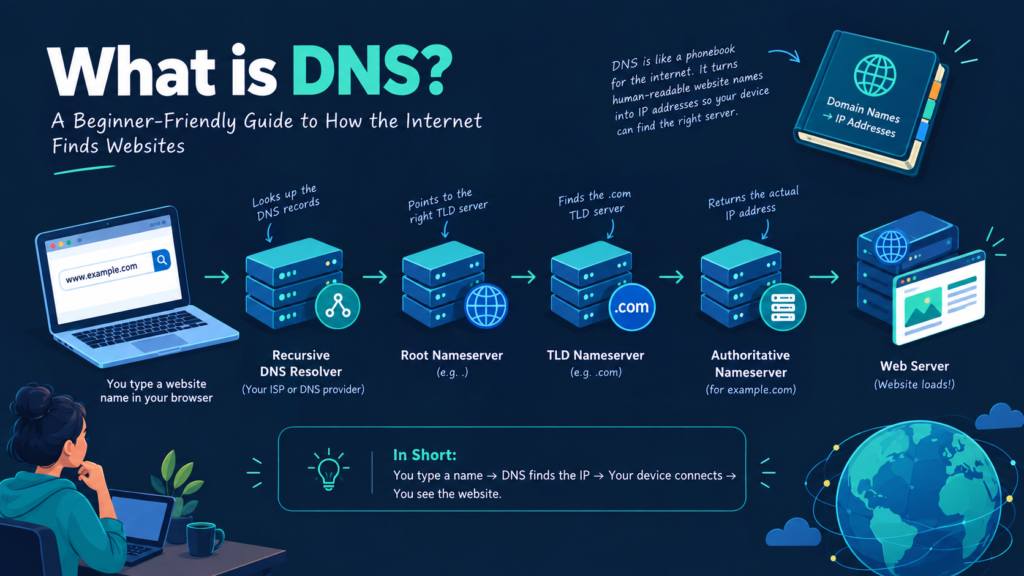
Step 1: You Enter the Domain Name
You type:
www.example.com
into your browser.
Your computer now needs to figure out:
“Where is this website located?”
It needs an IP address before it can communicate with the appropriate server.
Step 2: Your Device Checks Its Cache
Before asking DNS servers for the answer, your device may check whether it already knows the IP address.
DNS information can be cached in several places, including your browser, operating system, router, or DNS resolver.
If the information is already available and hasn’t expired, the process can be much faster.
This is one reason DNS doesn’t necessarily perform the entire lookup every time you visit a website.
Step 3: The DNS Resolver Gets Involved
If the answer isn’t available from cache, your device sends the DNS request to a DNS resolver.
The resolver is essentially the server responsible for finding the answer to your DNS question.
Your internet service provider may provide a DNS resolver, or you can use another DNS service.
The resolver then starts looking for the answer.
Step 4: The Resolver Contacts a Root DNS Server
If the resolver doesn’t already know the answer, it starts the DNS lookup process.
The first important stop is a root DNS server.
The root server doesn’t normally give the final IP address for example.com.
Instead, it helps point the resolver toward the appropriate Top-Level Domain (TLD) server.
For example:
.com.org.net.in
So if you’re looking for:
example.com
the resolver needs information related to the .com part of the domain.
Step 5: The TLD Server
Next, the resolver contacts the appropriate TLD server.
TLD means Top-Level Domain.
In:
example.com
.com is the TLD.
The TLD server helps the resolver discover which authoritative nameserver is responsible for example.com.
Think of it like narrowing down the search.
First:
Internet → .com
Then:
.com → example.com
Step 6: The Authoritative DNS Server
Now we reach one of the most important parts of DNS.
The authoritative DNS server contains the DNS records for the domain it is responsible for.
For example, it may contain information that tells DNS where example.com should point.
The resolver asks:
“What is the DNS record for example.com?”
The authoritative server provides the appropriate answer.
This server is considered the final source of truth for the domain’s DNS records.
Step 7: The IP Address Goes Back to Your Device
Once the resolver receives the required DNS information, it sends the answer back to your device.
Now your computer knows where the website is located.
The basic journey looks like this:
You type a domain
↓
DNS Resolver
↓
Root Server
↓
TLD Server
↓
Authoritative DNS Server
↓
IP Address
↓
Your Browser Connects to the Website
The entire process can happen very quickly, especially when DNS information is already cached.
The DNS Lookup in One Simple Diagram
Here’s an easy way to remember it:
You
 │
 │  www.example.com
 ▼
DNS Resolver
 │
 ▼
Root DNS Server
 │
 ▼
.com TLD Server
 │
 ▼
Authoritative DNS Server
 │
 ▼
IP Address
 │
 ▼
Web Server
 │
 ▼
Website Loads
That’s DNS doing its job behind the scenes.
What Are DNS Records?
DNS doesn’t only store IP addresses.
It uses different types of DNS records, and each record serves a different purpose.
Some common records you’ll encounter are:
1. A Record
An A record maps a domain name to an IPv4 address.
Example:
example.com → 192.0.2.10
2. AAAA Record
An AAAA record is used to point a domain to an IPv6 address.
IPv6 addresses are longer than IPv4 addresses and are designed to provide a much larger address space.
3. CNAME Record
CNAME stands for Canonical Name.
It allows one domain or subdomain to point to another hostname.
For example:
www.example.com → example.com
CNAME records are commonly used with subdomains and hosted services.
4. MX Record
MX stands for Mail Exchange.
MX records tell email systems which mail servers handle email for a domain.
So when you send an email to:
someone@example.com
MX records help determine where that email should be delivered.
5. TXT Record
TXT records can store text information associated with a domain.
They are commonly used for things such as domain verification and email-related security configurations.
What is a DNS Server?
A DNS server is a server that participates in answering DNS queries.
But there isn’t just one kind of DNS server.
You’ll commonly hear about:
- DNS Resolver
- Root DNS Server
- TLD DNS Server
- Authoritative DNS Server
Each plays a different role in the DNS lookup process.
A resolver searches for the answer on behalf of the client.
An authoritative server provides the actual DNS information for the domain it manages.
Understanding this difference is particularly useful when you’re learning networking or preparing for technical interviews.
What is DNS Caching?
Imagine that millions of people request the IP address of the same popular website every second.
It wouldn’t make sense for every request to travel through the complete DNS lookup process.
That’s where DNS caching comes in.
DNS information can be temporarily stored so that future requests can be answered more quickly.
For example:
First request
Website → DNS lookup → IP address

Later request
Website → Cached DNS information → IP address
This can reduce the amount of work required and make DNS lookups faster.
What is TTL in DNS?
You may come across the term TTL when working with DNS.
TTL stands for Time to Live.
It tells DNS systems how long a DNS record can be cached before it should be queried again.
For example, if a DNS record has a TTL of:
3600 seconds
that is:
1 hour
After the relevant cache period, a resolver may need to obtain updated information.
This is one reason DNS changes don’t necessarily appear everywhere immediately.
Can DNS Affect Website Performance?
Yes.
DNS is only one part of the process of loading a website, but the DNS lookup itself takes time.
A well-designed DNS infrastructure can help provide fast and reliable resolution.
However, website performance depends on many other factors too, such as:
- Server response time
- Network latency
- JavaScript
- Images
- CSS
- Database performance
- CDN configuration
- Caching
- Hosting infrastructure
So it’s important not to think of DNS as the only factor affecting website speed.
Is DNS Related to Website Security?
Yes.
DNS is an important part of internet infrastructure, and attackers can attempt to manipulate DNS information to redirect users to malicious destinations.
One technology designed to help address this problem is DNSSEC — Domain Name System Security Extensions.
DNSSEC adds cryptographic signatures to DNS data so that DNS responses can be validated as coming from the correct source.
DNSSEC doesn’t replace other security measures, but it adds an additional layer of protection to DNS.
DNS vs IP Address
This is a common beginner question.
| DNS | IP Address |
|---|---|
| Human-friendly naming system | Numerical/network address |
| Helps translate names into addresses | Identifies a network destination |
Example: example.com | Example: 192.0.2.10 |
| Easier for humans to remember | Used by computers and networks |
A simple way to remember it:
DNS tells you where to go.
The IP address tells the network where that destination is.
Why DNS Matters to Developers
If you’re a developer, DNS is something you’ll eventually encounter in real projects.
For example, when deploying a website, you might need to configure:
example.com
www.example.com
api.example.com
You may also work with:
- A records
- CNAME records
- MX records
- TXT records
- Nameservers
- DNS providers
- SSL certificates
- CDN configuration
- Domain verification
At some point, you may deploy a perfectly working application and still wonder:
“Why isn’t my domain opening?”
Quite often, DNS configuration is one of the things you need to check.
A Simple Example for Developers
Suppose you deploy your React frontend at:
myapp.com
and your backend API is running at:
api.myapp.com
You might configure DNS so that the domain and subdomain point toward the appropriate hosting infrastructure.
Your architecture could look something like:
myapp.com
    │
    └── Frontend

api.myapp.com
    │
    └── Backend API
DNS helps users and applications find those services using easy-to-remember domain names.
Common DNS Terms You Should Know
If you’re preparing for an interview, make sure you understand these terms:
DNS — Domain Name System
Domain Name — Human-readable name such as example.com
IP Address — Network address associated with a device or service
DNS Resolver — Server that finds DNS answers for clients
Root Server — Starting point in the DNS hierarchy
TLD — Top-Level Domain such as .com, .org, or .in
Authoritative Server — Server containing authoritative DNS records for a domain
DNS Record — Information stored in DNS
TTL — Time for which DNS information may be cached
Nameserver — Server responsible for answering DNS queries for a domain or zone
DNSSEC — Security extensions that use cryptographic signatures to validate DNS data
A Quick Interview Question
Interviewer:
What happens when you type google.com into a browser?
A good beginner-level answer would be:
“The browser needs to find the IP address associated with google.com. It may first check cached DNS information. If the address isn’t available, the request goes to a DNS resolver. The resolver can query the DNS hierarchy, including the root and TLD servers, until it reaches the authoritative DNS server for the domain. The IP address is then returned to the browser, which can connect to the web server and request the website.”
You don’t necessarily need to memorize every word.
Just understand the flow.
Final Takeaway
DNS is one of those technologies that most people use every day without even realizing it.
Whenever you type:
google.com
youtube.com
github.com
or any other website into your browser, DNS is working behind the scenes to help your device find the right destination.
The easiest way to remember DNS is:
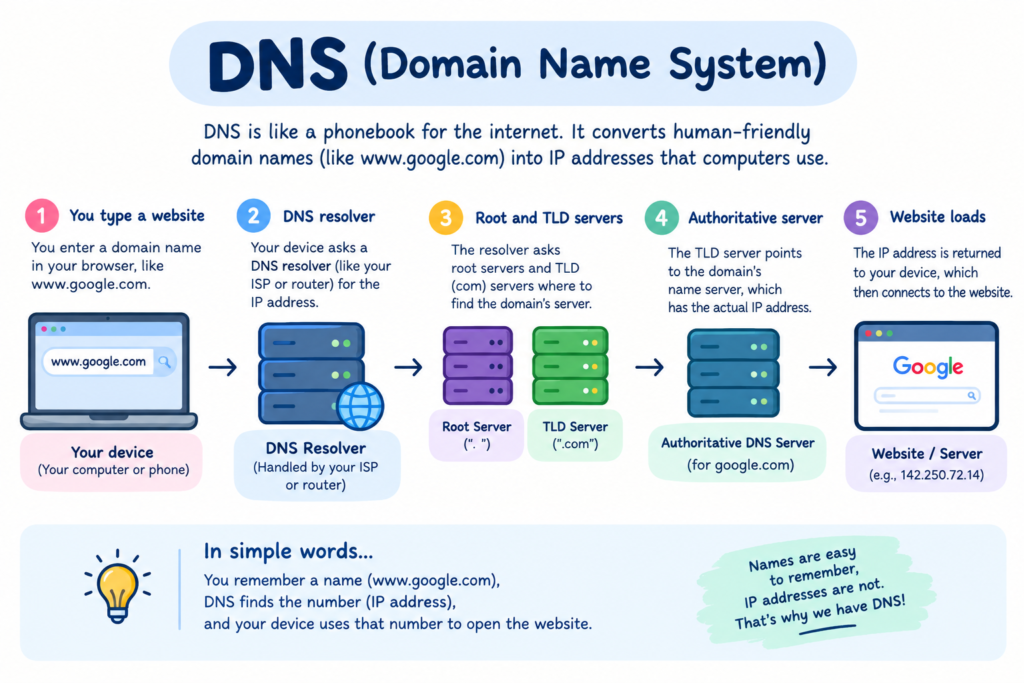
Domain Name → DNS Lookup → IP Address → Server → Website
Once this basic flow becomes clear, concepts like DNS records, nameservers, hosting, domains, CDNs and deployment become much easier to understand.
And if you’re a student or a developer, DNS is definitely worth understanding well. You don’t need to become a networking expert overnight. Start with the basic flow, experiment with DNS records, and gradually explore the deeper concepts.
That’s how networking knowledge becomes practical rather than just something you memorized for an exam.
Keep learning one concept at a time.
ITCareerZone — Learn. Build. Grow.